B9 Game Deposit Deducted but Balance Not Showing? Check Before Paying Again
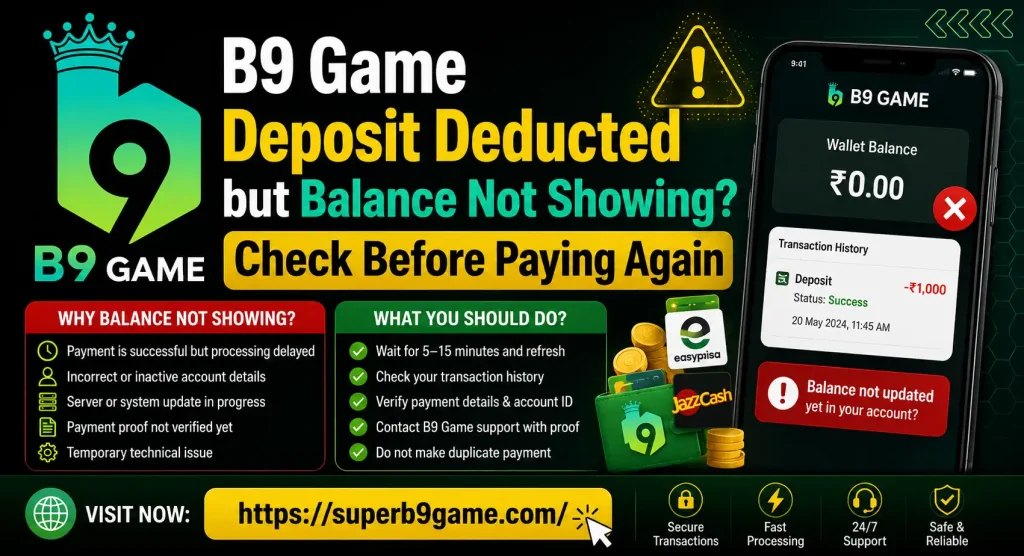
Your JazzCash, Easypaisa or bank account may show a successful debit while the B9 Game wallet still displays the previous balance. This does not always mean that the money is lost. It often means that the payment has not been matched to the correct B9 account or deposit order.
Do not send the same amount again to test the system. First save the payment reference, open the B9 deposit history and compare the amount, receiving account and transaction time. Those details help locate whether the issue happened at the wallet, payment channel or game-account stage.
Quick Checks Before Making Another Payment
Work through these checks once:
- Confirm whether the JazzCash, Easypaisa or bank transaction says Successful, Pending or Failed.
- Save the transaction ID, reference number and payment time.
- Open B9 Game and find the original deposit order.
- Compare the amount paid with the exact order amount.
- Check that the receiver number or account matches the payment instruction shown for that order.
- Confirm that you are logged in to the B9 account that created the deposit request.
- Check whether the order had expired before the payment was completed.
- Refresh the B9 wallet and deposit history using a stable connection.
- Save screenshots of the payment debit and the game order.
- Contact recognised support with both references if the balance remains missing.
Never share your JazzCash or Easypaisa PIN, bank OTP, B9 password or withdrawal password with someone claiming to add the balance manually.
Why a Successful Payment May Not Appear in B9 Game
A mobile-wallet debit and a game-wallet deposit are connected but separate records. JazzCash, Easypaisa or a bank records the transfer. B9 Game must then recognise the transfer and assign it to the correct user.
| Record | What it confirms | What it does not confirm |
| Wallet or bank debit | Money left the payment account | B9 identified the payment |
| Successful payment status | The payment service recorded a completed transfer | The game wallet was credited |
| Transaction reference | The payment can be traced | It was matched to the right B9 order |
| B9 deposit order | The account requested a deposit | The receiver confirmed the money |
| Updated B9 balance | The game credited the deposit | A related bonus is also eligible |
The key task is matching the payment transaction reference with the B9 deposit order ID. A debit screenshot without the deposit order may not show which B9 account should receive the amount.
Common Reasons the B9 Balance Has Not Updated
The payment was sent without creating a deposit order
B9 may create a payment instruction after you select a method and amount. Sending money directly to a previously saved account can leave the platform without an active order to match.
For the missing transaction, do not create a fresh order and pretend it belongs to the earlier payment. Save the original transfer details and ask support whether they can identify and reconcile it.
An old receiving account was used
Payment destinations can change. A JazzCash or Easypaisa number saved from an earlier deposit may no longer match the receiver displayed for the new order.
Compare the successful transfer with the exact instructions shown when the B9 deposit was created. If you used an old screenshot, copied number or saved beneficiary, mention that fact in the support request.
The deposit instruction expired
A receiving number, account or payment reference may belong to a temporary order. If you waited too long before authorising the payment, the wallet could still process the transfer after B9 stopped waiting for that order.
Check the creation time and any expiry notice visible in the deposit screen. Do not assume a fixed universal expiry period because the payment flow can change.
The amount paid does not match the requested amount
Automatic systems often use the amount as one matching field. If the order was created for one value and you transferred another, the payment may require manual review.
Compare the figures carefully. Do not send the difference as a second transaction unless recognised B9 support gives a verifiable instruction within the platform.
The transaction is still pending
Money can appear unavailable while a payment remains pending or processing. A pending screen is not proof of a final transfer to the receiver.
Do not pay again. Monitor the original transaction through the wallet or bank’s official history. If it does not reach a final status, use the payment provider’s official complaint process.
B9 is showing an old cached balance
The deposit may appear in transaction history while the dashboard still displays an earlier total. Close B9 Game fully, reconnect to a stable network and open the app again.
Check Deposit History before clearing any app data. Clearing temporary cache may refresh the interface, but it cannot move money between accounts.
The deposit was created in another B9 account
Saved sessions can cause confusion when more than one mobile number or user ID has been used on the same phone. Confirm that the account currently open is the one that created the deposit order.
Do not register a new account to recover the money. Keep the original B9 user ID and ask support to investigate that account.
The receiver got the payment but B9 has not reconciled it
The payment provider and game platform may update at different times. When the amount, receiver and order all match, the transaction may need manual reconciliation.
Avoid relying on an unverified processing-time promise. Record the exact payment time and ask for the status of the specific deposit order.
The deposit arrived but the expected bonus did not
Check whether the real-money amount is present in the B9 balance. If the deposit appears but a promotional amount is missing, the payment itself has been credited. The remaining problem concerns bonus eligibility or claim rules.
Keep the two issues separate when contacting support. A missing bonus should not be reported as a missing wallet deposit.
Understand the Payment Status Before Taking Action
Successful
If the payment is marked successful and the debit remains posted, save its reference and report it to B9 for reconciliation. Confirm the receiver details before contacting the payment provider.
Pending or Processing
Do not repeat the transfer. Wait for the wallet or bank to show a final status and use its recognised support option if the payment remains unresolved.
Failed
A failed transaction should not be treated as a successful B9 deposit. Check whether the deducted amount is reversed to the payment account. If not, report the failed transaction to the wallet or bank.
Reversed or Refunded
If the payment returned to JazzCash, Easypaisa or the bank, there is no completed transfer for B9 to credit. Create a new deposit order only after the reversal is visible and you decide to try again.
Step-by-Step Checks for a Missing B9 Deposit
Open the payment transaction
Open the app or bank used for payment and select the exact transfer. Record:
- final status;
- amount;
- date and time;
- receiver name;
- receiver number or account, where visible;
- transaction ID or reference number;
- masked sender details.
Take a screenshot without exposing your full account information.
Find the B9 deposit order
Open B9 Game and go to the wallet, deposit history or transaction section. Save:
- B9 user ID;
- deposit order ID;
- amount requested;
- payment method;
- order creation time;
- current order status;
- receiver details shown for that order.
If no order appears, write that clearly in the complaint.
Compare both records
Place the wallet transaction and B9 order side by side.
| Detail | Payment record | B9 order | Expected result |
| Amount | Amount deducted | Amount requested | Should match |
| Time | Transfer time | Order time/window | Should correspond |
| Receiver | Wallet/account credited | Destination shown | Should match |
| Reference | Transaction ID | Payment reference, if available | Used for tracing |
| User account | Sender identity | B9 user ID | Must identify the account to credit |
Write down any difference rather than editing a screenshot or creating a replacement order.
Check for a reversal
Review the payment account after the original debit. Look for a refund, reversal or adjustment of the same amount.
If the amount returned, the B9 wallet should not receive it. If the debit remains and the transaction is successful, continue with B9 reconciliation.
Refresh B9 Game once
Close the application and reopen it on one stable internet connection. Review both the wallet total and deposit history.
Repeated logins, OTP requests and reinstalls can create another problem without fixing the payment. If the app itself is not loading, use the existing B9 Game problems guide before clearing data.
Preserve the original account settings
Do not change the registered number, password, payment profile or user account while the deposit is being traced. Keep the registered SIM active.
If you mistakenly paid while another B9 account was open, provide both the payment time and original account ID to support.
Send a complete support request
Provide the deposit order and payment reference in the same message. Ask B9 to confirm whether the receiver recorded the transfer and to reconcile it with your account.
JazzCash Deducted but B9 Balance Is Missing
When JazzCash was used, open the transaction history and confirm the final status. Compare the receiver number or merchant details with the B9 deposit instruction.
Use this checklist:
- Verify that B9 shows JazzCash as the selected method.
- Match the payment amount with the order amount.
- Compare the receiver details.
- Save the JazzCash transaction ID.
- Check for a later reversal.
- Send the transaction ID and B9 order ID to support.
- Use JazzCash’s official support channels if the payment status itself needs investigation.
JazzCash’s official contact page states that JazzCash will not ask for your PIN, OTP or password. Apply the same rule to anyone who contacts you about the B9 deposit.
Easypaisa Deducted but B9 Balance Is Missing
For an Easypaisa payment, open the successful transaction and record its amount, time, receiver and reference. Confirm that the receiver matches the payment details generated by B9.
Follow these checks:
- Confirm Easypaisa was selected for the B9 order.
- Compare the exact amount.
- Check the receiving number or account title.
- Save the transaction reference.
- Look for a refund or reversal.
- Report the transaction to B9 with the deposit order ID.
- Use information in the official Easypaisa FAQs if the transfer status or wallet account needs investigation.
Do not use a support number posted in an unknown WhatsApp group, Telegram channel or website comment.
What to Send to B9 Game Support
A complete report should contain:
- B9 user ID;
- deposit order ID;
- amount;
- selected payment method;
- order creation time;
- payment time;
- final payment status;
- JazzCash, Easypaisa or bank transaction reference;
- masked sender and receiver details;
- screenshot of the deposit order;
- screenshot of the successful debit;
- screenshot of any reversal, if one appeared.
Never include a wallet PIN, bank OTP, card CVV, B9 login password, withdrawal password or remote-access code.
Ready-to-use complaint message
My payment was deducted successfully, but the B9 Game balance has not updated. B9 user ID: [ID]. Deposit order ID: [order ID]. Amount: PKR [amount]. Payment method: [JazzCash/Easypaisa/bank]. Payment time: [date and time]. Transaction reference: [reference]. Receiver: [masked details]. Please match this payment with the deposit order and confirm whether it was received. Screenshots of the order and payment record are attached.
Send one complete message and keep the support ticket or conversation reference.
Who Should You Contact First?
| What you found | Contact first | What to request |
| Payment successful, B9 order present and matching | B9 support | Reconcile the payment reference with the order |
| Payment successful but B9 order missing | B9 support | Search by user ID, amount, time and reference |
| Receiver differs from B9 instruction | B9 support, then payment provider as appropriate | Confirm destination and dispute options |
| Transaction pending or processing | Wallet or bank | Final status of the payment |
| Transaction failed but debit remains | Wallet or bank | Trace or reversal of the failed payment |
| Amount reversed | No missing-deposit case | Create a fresh order only if trying again |
| Deposit credited but bonus absent | B9 bonus/support section | Check promotion eligibility |
Contact the service that controls the missing record. B9 handles game-account credit; the wallet or bank handles the payment status and debit.
What If You Paid the Wrong Receiver?
Report the problem immediately through recognised channels. Ask B9 whether the receiving details belonged to an active order and contact the payment provider about its formal dispute process.
Do not assume that a successful payment can be cancelled automatically. Recovery may depend on the transaction and provider’s process. Do not contact or threaten a possible recipient, and never publish complete financial details.
For future deposits, verify the receiver name and number on the final confirmation screen before entering a PIN or approving the transfer.
Mistakes to Avoid While the Deposit Is Missing
Do not pay the same order twice
A duplicate transaction creates another reference and may still leave the first payment unresolved.
Do not reuse an old receiver number
Always use the instruction generated for the current deposit order. A previously saved number may no longer be valid for a new request.
Do not pay a release or verification fee
An unknown person may claim that another payment is needed to unlock the balance. A missing deposit should be traced with the existing order ID and transaction reference.
Do not share a PIN or OTP
Support can investigate using the amount, time, transaction reference and screenshots. A PIN or OTP can authorise account activity and should remain private.
Do not create another B9 account
The original order belongs to the account that created it. A new account makes record matching more difficult.
Do not delete transaction evidence
Keep the payment screen, deposit order, bank statement entry and support ticket until the case is closed.
How to Prevent B9 Deposit Problems in the Future
Before confirming a new deposit:
- sign in to the correct B9 account;
- start a fresh order from the deposit section;
- use only the receiver displayed for that order;
- check the receiver name and number;
- send the exact requested amount;
- complete the payment while the instruction is active;
- use a stable internet connection;
- save the B9 order ID;
- save the wallet transaction reference;
- wait for a final payment status before taking further action;
- never transfer money through an unofficial agent.
If a verification code is accepted but the account does not open after payment, use the separate B9 Game code accepted guide rather than creating another account.
Frequently Asked Questions
Final Thoughts B9 Game Deposit Deducted
When a B9 Game deposit is deducted but the balance does not show, match the payment record with the game order before taking any further financial action. The most useful evidence is the transaction reference, deposit order ID, amount, receiver, time and B9 user ID.
Contact B9 first when the payment is successful but the game account is not credited. Contact JazzCash, Easypaisa or your bank when the transfer is pending, failed without reversal or has an unclear status.
Do not repeat the payment, use an old receiver or share a PIN. One complete evidence set is safer and more useful than several new transactions.
Responsible-gaming notice: B9 Game content is intended only for adults aged 18 and above who meet applicable legal requirements. Real-money gaming can cause financial loss. Never borrow to play, chase losses or make another deposit while a payment issue remains unresolved.